SteamVR Support
VertoXR provides OpenVR/SteamVR driver support, allowing you to use your AR glasses for head tracking in SteamVR-compatible games and applications.
Overview
VertoXR is collaborating with VrTo3d to provide SteamVR driver support. The VrTo3d driver enables 3DOF (three degrees of freedom) head tracking by translating your glasses' orientation into SteamVR's tracking system. This allows you to experience VR content using your AR glasses instead of traditional VR headsets.
Learn more about VrTo3d
Prerequisites
Before setting up SteamVR with VertoXR, ensure you have:
- SteamVR installed and updated
- VertoXR application installed and your glasses connected
- A compatible AR glasses device
- Windows operating system (driver support for other platforms coming soon)
Setup Instructions
Follow these steps to set up SteamVR with VrTo3d drivers:
A Single Display configuration is recommended for the best experience, but you can also use a multi-display configuration if desired.
Step 1: Install SteamVR
Install SteamVR from Steam if you haven't already.
Step 2: Install VrTo3d Driver
- Download the Latest/Pre-release VrTo3d driver (version V3.4.0 or higher)
- Extract the downloaded file and locate the
vrto3dfolder - Copy the
vrto3dfolder to your SteamVR drivers directory:Steam\steamapps\common\SteamVR\drivers\ - Learn More
Step 3: Initial Launch and Configuration
- Launch VertoXR and connect your glasses
- Navigate to Game Mode and configure SteamVR settings
- Once configured, a
default_config.jsonfile will be automatically generated in:Documents\My Games\vrto3d\default_config.json - You can edit the configurations within VertoXR before launching SteamVR
If you manually edit the default_config.json file, ensure that:
use_open_trackis set totrue- The
open_trackport matches the port configured in VertoXR
VertoXR communicates with VrTo3d using openTrack UDP protocols, so these settings must be synchronized.
- Learn more about configuration options
Step 4: Configure Display Settings
Configure your display settings according to your glasses:
-
Window Resolution: Set to match your fullscreen resolution:
- 3840x1080 for Full-SbS (Side-by-Side)
- 1920x1080 for Half-SbS
-
Display Priority:
- Your 3D display MUST BE YOUR PRIMARY DISPLAY
- The window resolution MUST MATCH your full desktop resolution to avoid issues
-
Render Resolution:
- Set per-eye render resolution based on your performance needs
- Reducing this can improve performance
- If your display is half-SbS or half-TaB (Top-and-Bottom), try setting this to the half-resolution
-
Virtual Key Codes: Configure any Virtual-Key Code settings to use your preferred keys
Step 5: Download Game Profiles
Download the latest VRto3D profiles for games and extract them to your Documents\My Games\vrto3d\ folder.
These profiles contain optimized settings for various SteamVR games and applications.
Step 6: Verify Setup
- Run SteamVR from Game Mode in VertoXR
- Launch the SteamVR app to verify that you see the Headset window covering your entire display
- Note: This verification step is usually not needed before running games
- Important: The Headset window must be on your primary 3D display
- Dismiss the Headset Notice about "Enable Direct Display Mode" as this does nothing
Step 7: Launch a Game
Try launching a VR game to test your setup! Start with a simple VR experience to ensure everything is working correctly.
Controller Options
Since AR glasses provide head tracking but not hand controllers, you'll need a solution for input. Here are your options:
Software-Based Solutions
Option 1: Mouse and Keyboard Emulation
Use the Half-Life Alyx NoVR driver to emulate Mouse and Keyboard as SteamVR controllers. This allows you to play and explore SteamVR games with Mouse/Keyboard input.
Option 2: Driver4VR
Use a paid software like Driver4VR to emulate VR controllers using multiple strategies, including:
- Motion controllers
- Webcam-based hand tracking
- Other input devices
Hardware Controllers
eteeController SteamVR Kit
For an enhanced SteamVR experience, we recommend the eteeController SteamVR Kit. The eteeController is a first-of-its-kind full-finger tracking controller that provides intuitive VR control without gloves, cameras, or other excess equipment.
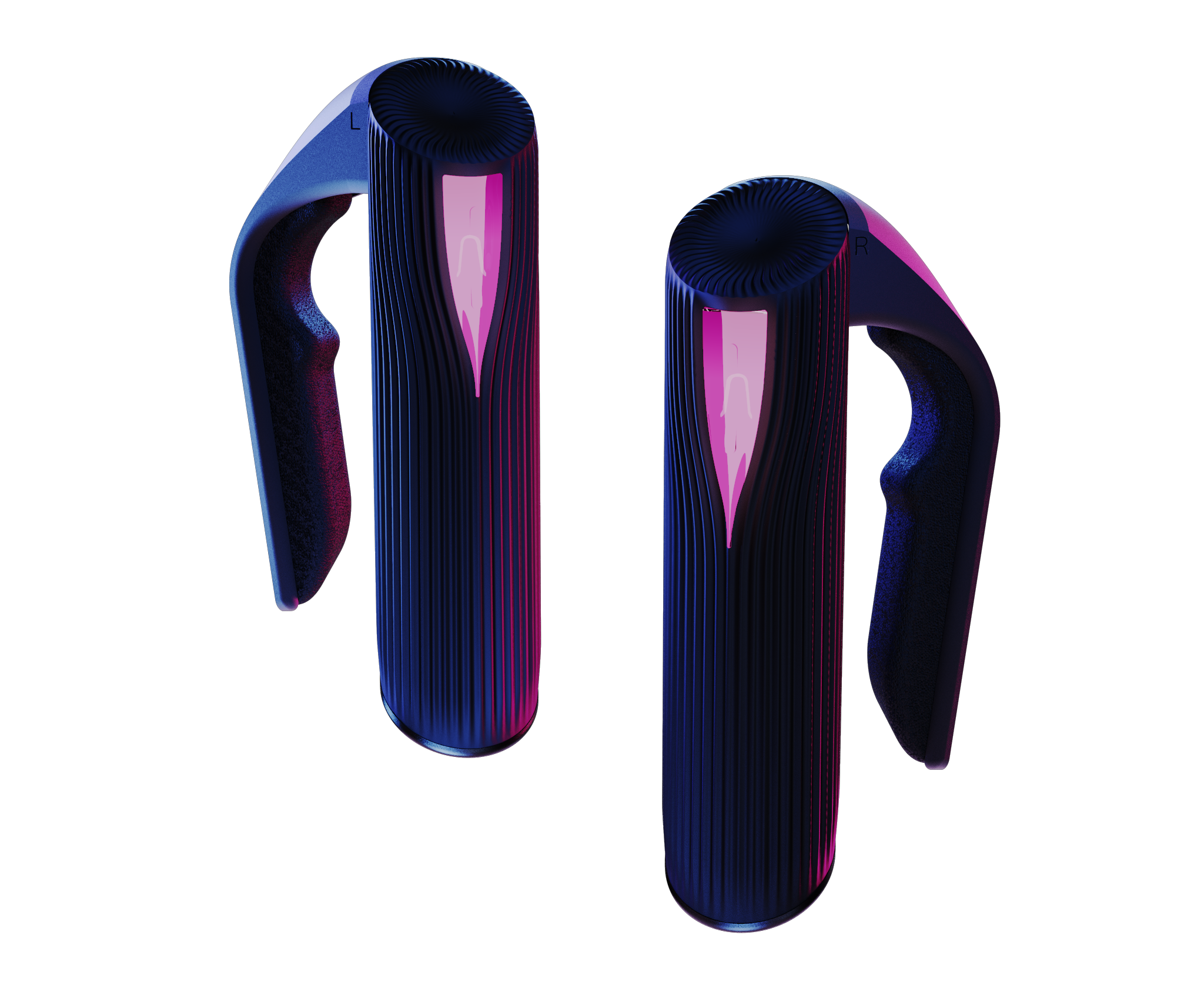
Key Features:
- Full-finger sensing technology
- 6 degrees of freedom tracking
- Lightweight and ergonomic design (5 oz / 142 g)
- SteamVR compatible
- 6 hours playtime
- Default gestures: Point/Pinch/Grip
The eteeController works seamlessly with SteamVR base stations and provides a natural, unobtrusive way to interact in VR experiences.
Learn more and purchase: eteeController SteamVR Kit
Other VR Controllers
You can also use other third-party VR controllers that are compatible with SteamVR, such as:
- Controllers from other VR headset manufacturers (if compatible)
- Third-party motion controllers with SteamVR support
Please let us know on Discord community if you found other working solutions
Troubleshooting
Headset Window Not Appearing Correctly
- Ensure your 3D display is set as the primary display
- Verify that the window resolution matches your full desktop resolution
- Check that SteamVR is running from VertoXR's Game Mode
Tracking Issues
- Calibrate your glasses on a flat surface before launching SteamVR
- Ensure VertoXR is running and connected to your glasses
- Check that the openTrack port in
default_config.jsonmatches VertoXR's configuration
Performance Issues
- Reduce the render resolution per eye in the configuration
- Close unnecessary applications
- Ensure your graphics drivers are up to date
Configuration Not Saving
- Make sure you have write permissions to
Documents\My Games\vrto3d\ - If manually editing
default_config.json, ensure proper JSON formatting
Additional Resources
- VrTo3d Documentation
- SteamVR Support
- Join our Discord community for support and updates