Immersive Space
Create your customized immersive space in your glasses by importing 3D environment models.
We do not host or provide any 3D models. You must download your own glTF or GLB asset files for the environment.
Overview
The Immersive Space feature allows you to customize your AR environment by importing 3D models. These models serve as the background environment in your AR space, creating a personalized immersive experience.
Step 1: Download a 3D Model
You need to download your own 3D glTF or GLB asset file for the environment. You can find suitable models from various sources, such as Sketchfab.
Example: Downloading from Sketchfab
-
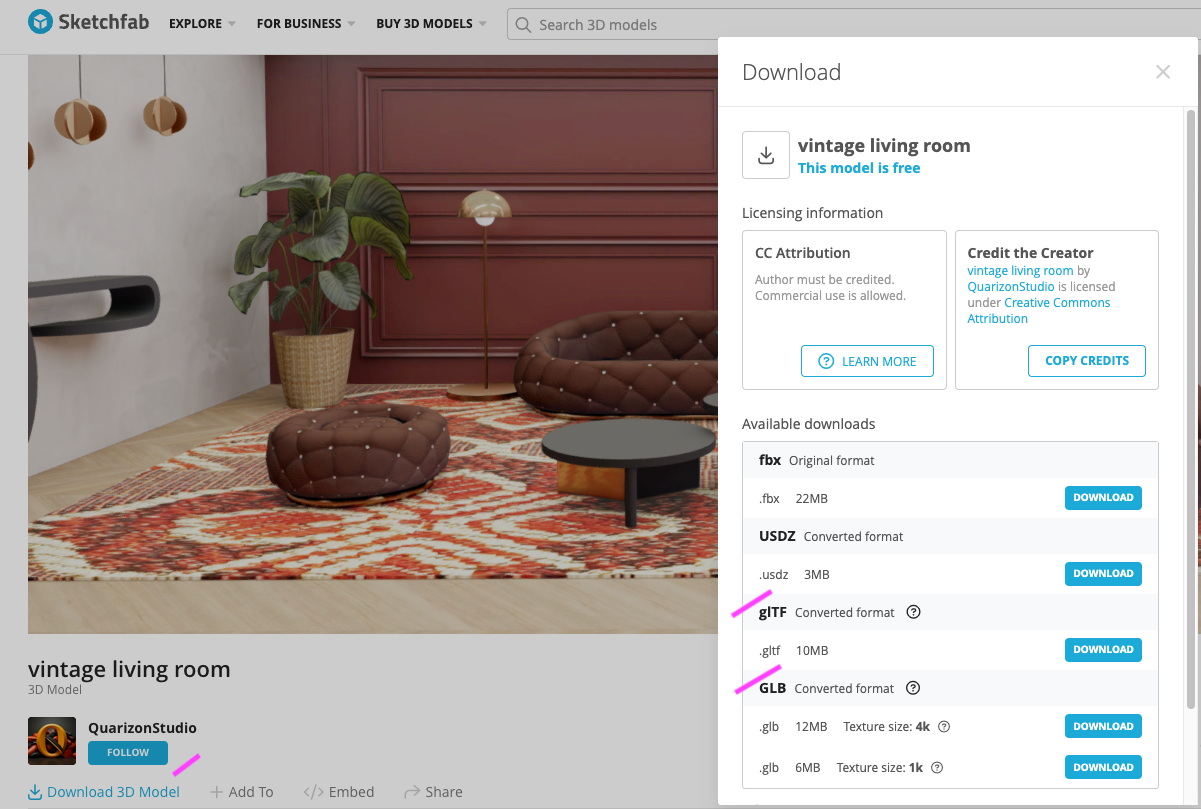
Visit a model page on Sketchfab, for example this model.
-
Click on Download 3D model and Select glTF or GLB format only (other formats are not supported)
Step 2: Import Assets in the App
-
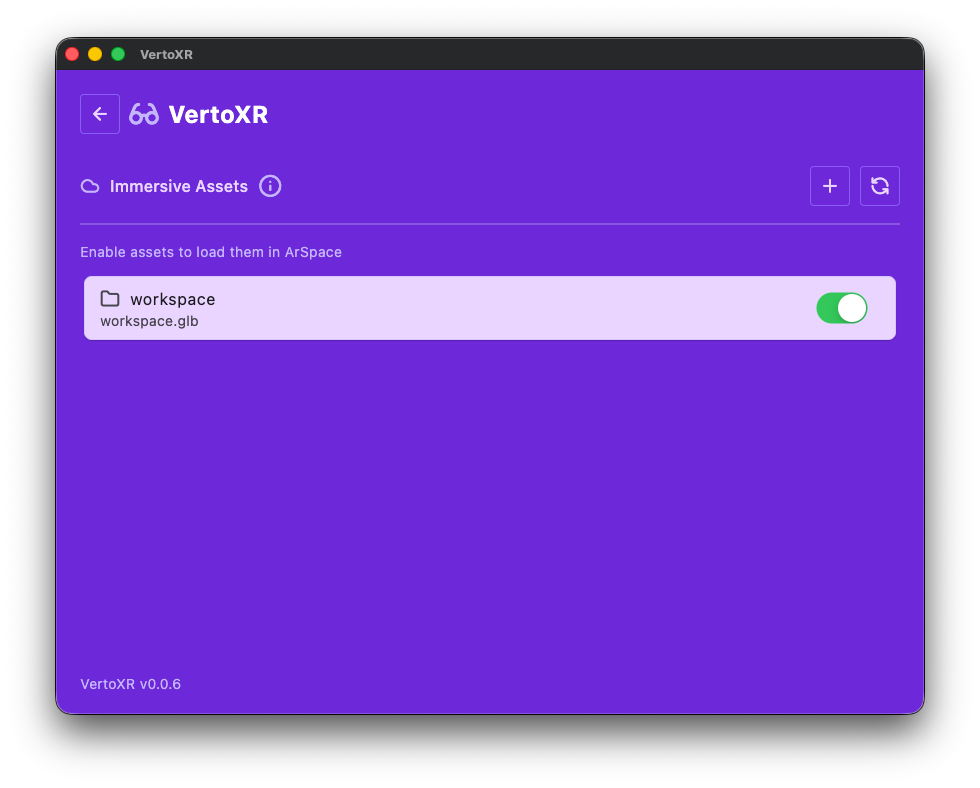
Navigate to the Immersive Assets section in the app
-
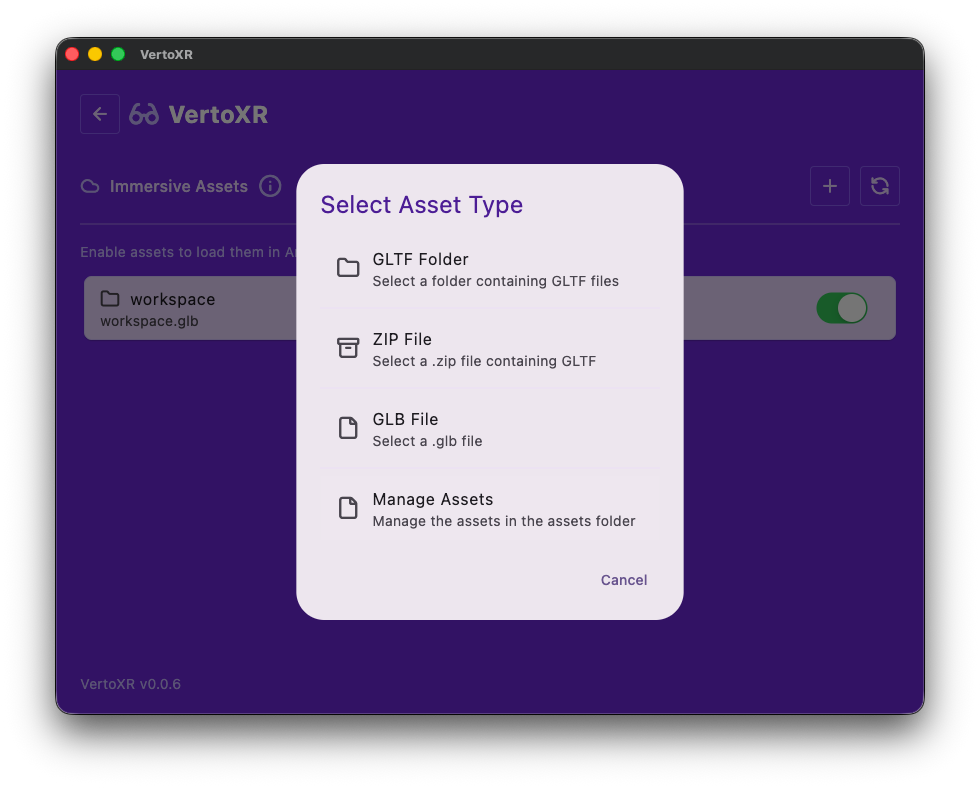
Click on the + icon to import an asset and select the required option
-
Click Refresh and enable the asset to load in ArSpace
Step 3: Configure the Asset in ArSpace
-
Launch ArSpace
-
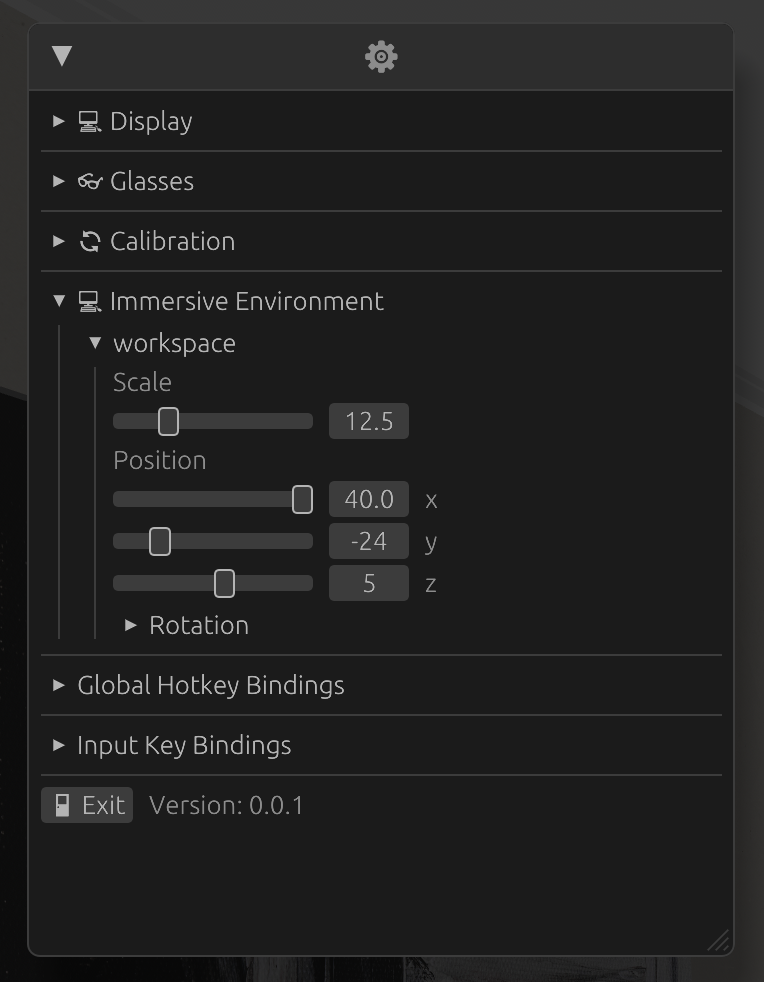
Open the ArSpace menu to configure the newly added asset
-
In the Immersive Environment section, configure the Scale and Position of the asset
When a new asset is loaded, configure the Immersive Environment section first. Set up the Scale, Position and Rotation for the asset before adjusting any displays to ensure the correct position is maintained on subsequent loads. These settings will be saved automatically for future use.